Remote Control for Samsung Signage: Fix Any Screen Without a Site Visit
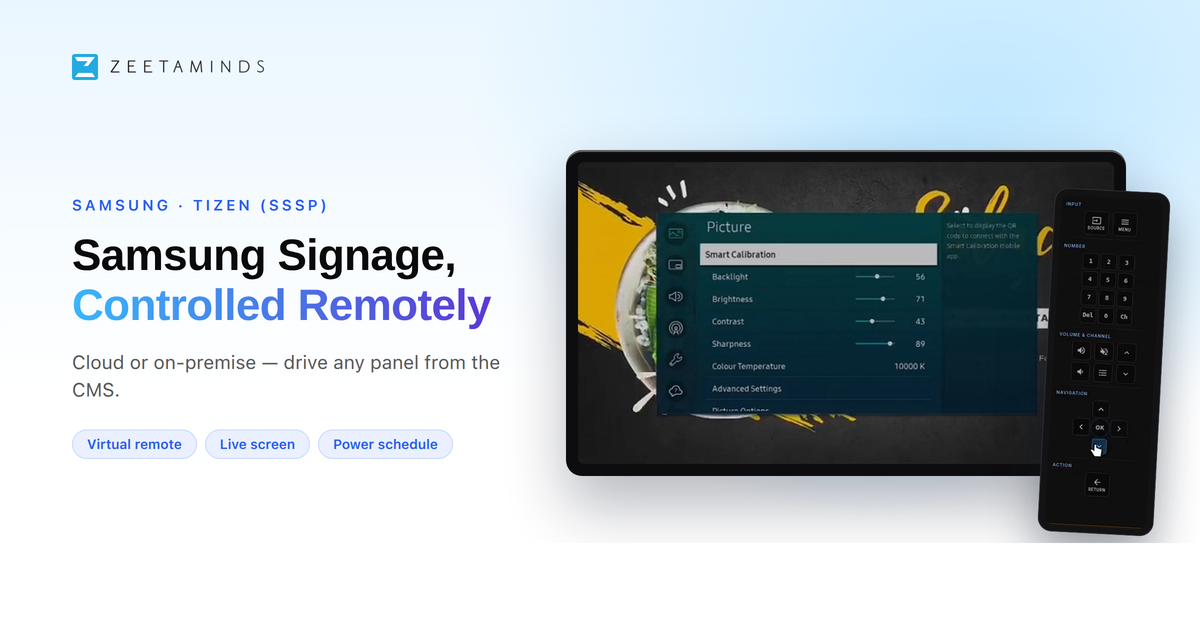
Every signage network sees this kind of ticket: the player is online and the right content is playing on schedule, but something is off with the display itself. The picture looks washed out in a sunlit storefront, someone grabbed a stray remote and changed the picture mode, or the crew wrapped a new install without finishing the display settings. That is a setting on the panel, not on the content, so a normal CMS cannot touch it, and it used to mean somebody driving to site just to press buttons on a physical remote. In most cases, not anymore.
On Samsung signage displays, Zeetaminds removes that trip. Open the display, click Remote, and you get two things side by side in the browser: a live view of what is on the panel right now, and a working remote. Most digital signage CMS platforms stop at power schedules, reboots and an online/offline status dot; a live view of the panel paired with a full working remote, both from the browser, is not something most of them offer.
Every key you would reach for on the physical remote is there, and your keyboard drives the navigation cluster. The live view refreshes at Low, Medium or High to suit the bandwidth at the site, and the session runs over the connection the display already holds to the CMS, so there is nothing extra to open up on the store network.
Where it earns its keep
- Incorrect picture settings. A panel in a sunlit storefront needs different backlight and brightness values from one in a lobby. Set them with the live view confirming the change.
- Temporary input source change for an event. Switch a display over to HDMI for a live event or a walk-in demo, then switch it back once the event is done.
- Viewing the overall playback of content on screen in real time. Confirm exactly what is playing on a panel right now, not what the schedule says should be playing.
- Volume and audio. Level a noisy store down, or mute a screen on request.
- Clearing local storage and cache. Free up space or fix a sluggish player by clearing the panel's own storage and cache, without touching the display.
- Restricting physical access. Turn on USB lock and remote lock from the browser so nobody can plug into the display or grab the physical remote in a public space.
- Configuring holiday and event timers. Set the panel's own holiday management and event timers directly, without a site visit.
- Undoing somebody else's changes. Someone found a remote and changed the picture mode or aspect ratio. Fixed in seconds.
- Faster support calls. Walk a first-line technician through the display's own menus while you watch the same screen they do.
One session runs per display at a time, and idle sessions close themselves. One caution the UI repeats: do not use the remote to walk into Network / Wi-Fi settings or force-close the app, since that restarts the player.
Remote Control and live screen streaming are rolling out on Samsung; if the buttons are not on your account yet, ask our support team to enable them.
It works the same on cloud or on-premise
Hardware control is not a cloud-only privilege. The remote, the live screen and everything below behave identically whether your Zeetaminds server is ours or yours, because the display holds an outbound connection to the CMS either way.
| Cloud (SaaS) | On-Premise | |
|---|---|---|
| Commercial model | Per screen, per month, from $10 | One-time perpetual licence, no recurring fees |
| Content lives | Zeetaminds cloud (SOC2 Type II, VAPT tested) | Your data centre / VLAN |
| Remote Control | Full | Full |
On-premise suits banks, government, defence, healthcare and secure manufacturing, where content and device telemetry cannot leave the organisation's network. A private cloud option sits between the two for larger estates. Minimum display counts apply on-premise, so write to sales@zeetaminds.com for terms.
The rest of the Samsung control surface
| Feature | What it does |
|---|---|
| Power Schedule | Weekly on/off times per day, saved as a named schedule and assigned to as many displays as you like. A display off by schedule shows as Scheduled power off, not offline. |
| Panel Off | Screen off while the player keeps running and downloading content |
| Remote Reboot | Restarts one display or many from the CMS |
| Snapshot | Captures what is on the screen right now, for proof of play and complaint handling |
| Live screen streaming | Continuous screen preview, without the remote panel |
| Volume and mute | Sets audio level per display |
| IR remote lock | Disables the physical remote, useful for cinemas, bars and public areas |
| Status and telemetry | Live/offline, panel off, firmware and player version, storage, network signal |
| TRUE In-sync playback | Frame-accurate sync across panels for video walls and menu boards |
Orientation is set on the Samsung display itself and reflected in the CMS. The 5-second video snap is an Android, Windows and Amazon Signage Stick feature; on Samsung you get stills plus live streaming instead.
For AV integrators and resellers this is a margin question: every truck roll avoided is money kept, which is why our white-label partners run Samsung-heavy estates with small support teams.
Getting a Samsung screen into the CMS
The app installs from a URL on the display itself, with no USB stick, no imaging, and no MagicInfo RM server. First-time setup: enter https://zeetaminds.com/sssp in the player URL field. On an already-configured display: HOME → Custom App → App Management → Install Custom App → same URL. Then add the display in the CMS using the security key shown on screen.
- Samsung SSSP setup guide: step-by-step, with screenshots
- Samsung MagicInfo end of life: what changes, and how to move your screens remotely: if your screens are still on MagicInfo
- SOC displays vs media boxes: if you are still choosing hardware
Want to try the remote on your own screens? Book a demo and we will drive a Samsung panel remotely while you watch, or start a free trial: no credit card required.