Samsung MagicInfo End of Life: What Changes, and How to Move Your Screens Remotely
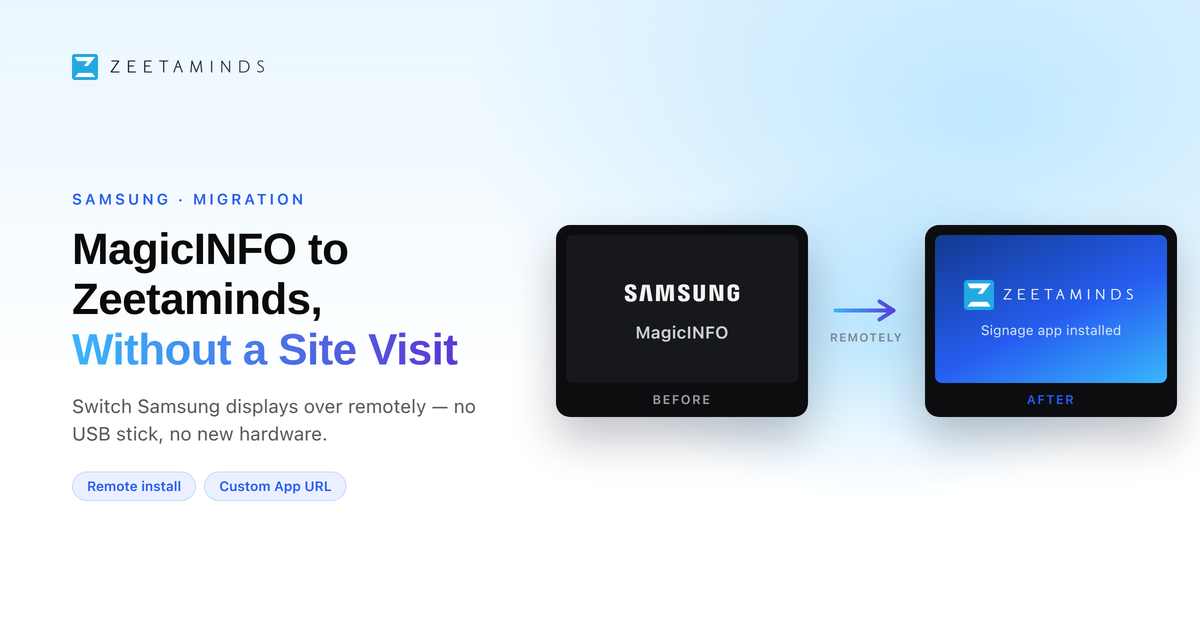
If your Samsung screens run MagicInfo, the platform under them is winding down. Samsung has published the dates, and they matter whether you run one site or five hundred.
The MagicInfo timeline
| Date | What happens |
|---|---|
| Already passed | MagicInfo 8 is out of support. The maintenance window that followed its 2020 release has closed and the final security patch shipped in October 2023. Vulnerabilities found now are the customer's problem. |
| 31 December 2026 | End of Sale for MagicInfo On-Premise. No new perpetual licences — Lite, Premium or Remote Management — can be added after this date. |
| December 2029 | End of Support for the MagicInfo 9 server. No patches, no security updates. |
Existing installations keep playing content after End of Sale — the licence is perpetual — so there is no cliff edge next month. But there are three consequences worth planning around now.
You cannot grow the fleet. After 31 December 2026 no new MagicInfo licences ship. A network that expands has to either stop expanding or start running two CMS platforms side by side.
The clock on patches is real. MagicInfo 8 is already unpatched, and the MagicInfo line has had actively exploited vulnerabilities — including a path-traversal flaw in MagicInfo 9 that was used to pull screens into a Mirai botnet. A signage server sitting on a corporate network without security updates is not a small thing, and after 2029 that applies to v9 too.
Networks that cannot use a public cloud have the least room to wait. Banks, hospitals, government facilities and secure manufacturing sites chose MagicInfo On-Premise precisely because content, schedules and device data stayed inside their own network. Whatever replaces it has to meet the same requirement — and it has to be a platform that is still being sold and still being patched.
Zeetaminds as the alternative
Zeetaminds runs the same Samsung Tizen screens you already own — no new hardware, no rebuild of the estate — and it keeps both deployment models open:
- On-premise, perpetual licence — installed on your servers, one payment, no subscription, content and telemetry never leave your network.
- Cloud — SOC2 Type II certified and VAPT tested, from $10 per screen per month.
- Hardware-agnostic — the same CMS also drives LG webOS, Android, Windows, Sony, Philips, Hisense, Vestel, BrightSign and the Amazon Signage Stick, so the next hardware decision is not locked to one brand.
And the switchover itself does not need a technician on site.
Moving a display, remotely
MagicInfo's own virtual remote is the tool that moves the screen off MagicInfo. Nothing gets installed by hand, and no display comes off the wall.
Before you start: your MagicInfo server is reachable on the network, the target displays show as online in the Device List, and you have a Zeetaminds account to pair them into.
- Open the virtual remote. In the MagicInfo server, go to the Device List, select the display (or displays), and click Remote Control. You get a live feed of the screen and a virtual remote.
- Exit MagicInfo. Press Exit on the virtual remote and confirm MagicInfo is no longer playing.
- Change the playback mode. Navigate to Menu → System → Play Via → Custom App.
- Point the display at Zeetaminds. Go to Home → App Management and set the Custom URL to
https://zeetaminds.com/sssp - Let it install. The display downloads and launches the Zeetaminds app on its own, then shows a security key.
- Pair it in the CMS. Add the display in Zeetaminds using that key and publish content.
Under Play Via, only MagicInfo and Custom App are available. URL Launcher is not supported.
This walkthrough covers an on-premise MagicInfo server. The steps for cloud-hosted MagicInfo will be added to this page.
Practical notes
- Start with one display. Run a single screen end to end before touching a site.
- Move site by site. Screens still on MagicInfo keep playing until you cut them over, so there is no estate-wide switchover moment.
- Nothing changes on the hardware. No new player, no cabling, no firmware step — only the app.
Once a screen is in Zeetaminds it also picks up the control features MagicInfo users tend to miss: a browser-based remote with a live view of the screen, weekly power schedules, panel off, volume, IR lock and snapshots. Those are covered in Remote Control for Samsung signage, and full install detail for a screen that was never on MagicInfo is in the Samsung SSSP setup guide.
Planning a migration before the 2026 deadline? Book a demo and we will walk one of your displays across with you, or start a free trial — no credit card required.