How to Install Zeetaminds Digital Signage App in Philips Android Display?
Step 1: Download App
Download APK :

Step 2: Install App
- Copy zminstaller.apk to a USB drive
- Power on the display
- Insert the USB drive into the display’s USB port.
- Access the Android Menu by pressing Home + 1 + 8 + 8 + 8 on the remote.
- Ensure the network (Ethernet or Wi-Fi) is configured.
- Open File Manager and navigate to: mnt → usb_storage
- Select zminstaller.apk and install it.
- Launch the installer app — it will automatically download and install the Zeetaminds Signage Player.
- Wait for the message: "Signage Player App has been installed successfully."
- If prompted, allow permission to “Display over other apps.”
Step 3: Initial Setup
Q-Line Series [Newer Version]
- Press Home on remote, go to Advanced → Boot On Source, uncheck Last Source and add Customer as the source.
Note: If Boot On Source is not available, try following the steps for Q-Line Series [Older Version].
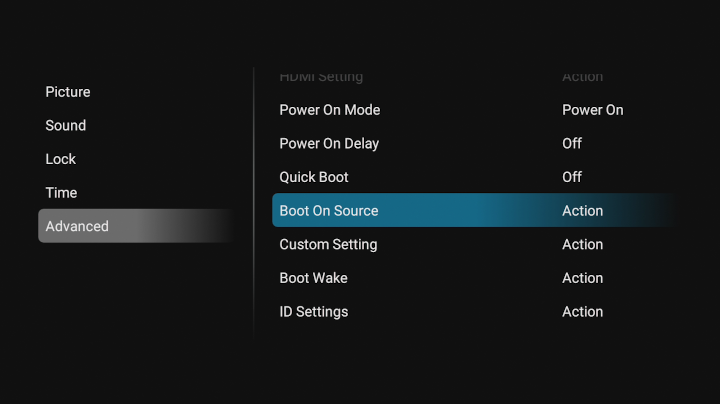
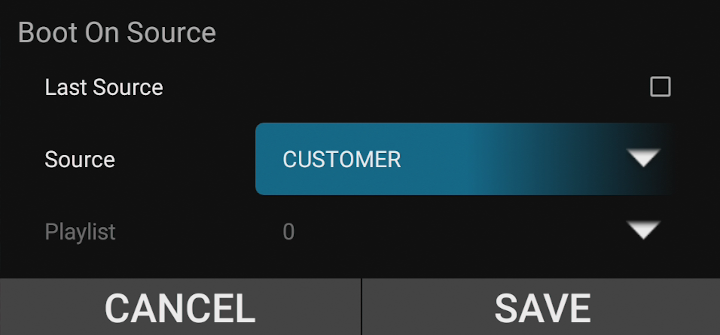
- Go to Advanced → Custom Setting → Custom App and select ON.
- Go to Advanced → Custom Setting → Select App and select Installer.
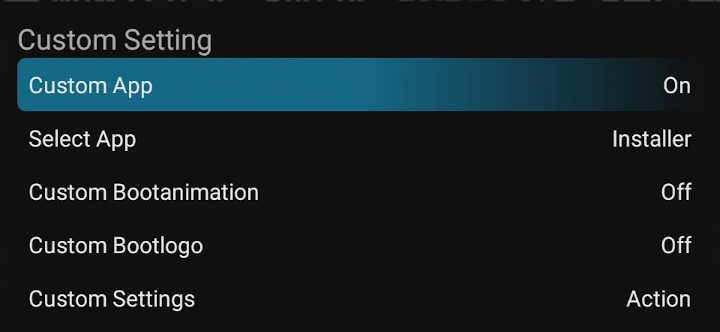
- Restart the Display.
Step 4: Launch App
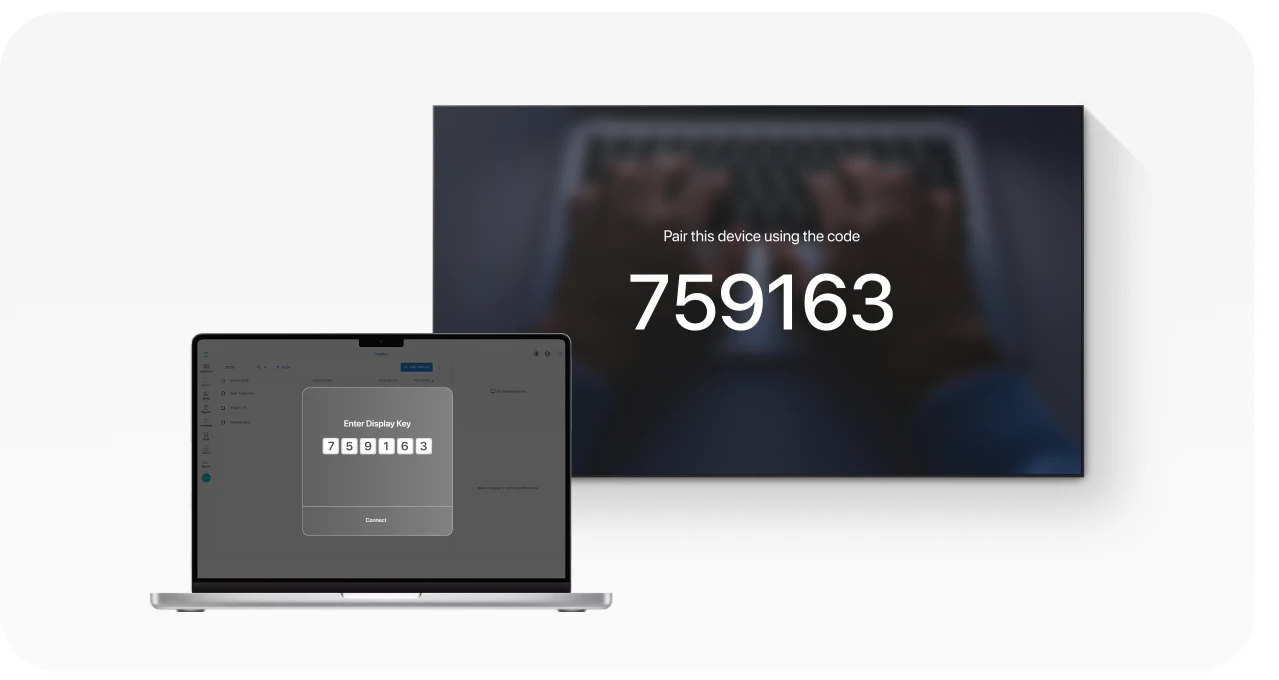
When you launch the app, you will be presented with security key as shown above. This security key is needed to add a display in the CMS.
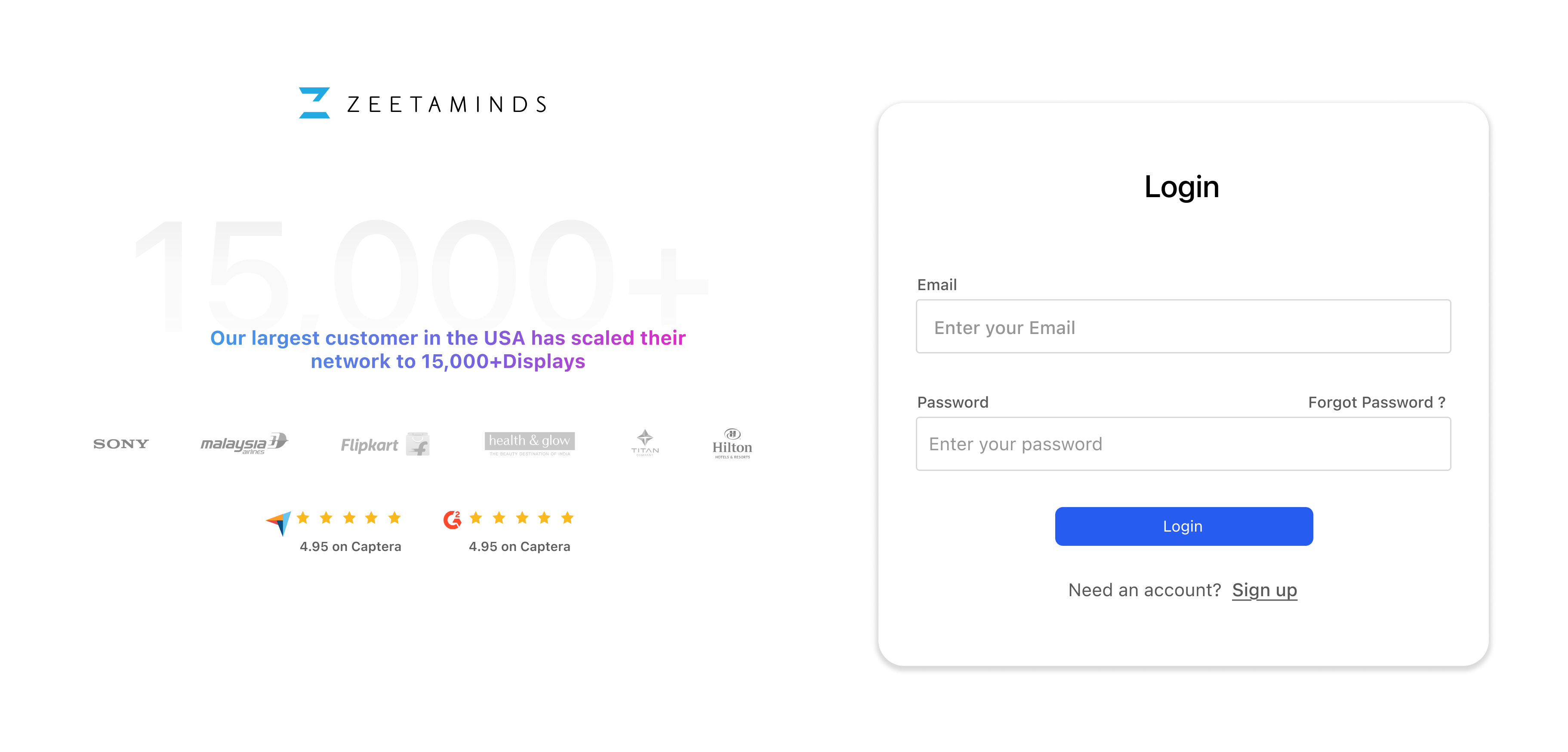
Step 5: Login
Step 6: Setup
Customer Voices
”
Most reliable Digital Signage Software out there.

Ranjit
Owner, Grandis Media